Secure Your Apartment With Dingbot Entry Codes
Learn how entry codes secure your apartment buzzer from unwanted visitors.
Dingbot already supported automatic entry with a voice password, but now you can set an entry password as well. This is a two to four digit code that visitors must punch into your intercom to be granted access into your building.
How are these codes set, and what does it look like when visitors buzz up? Let's dive in!
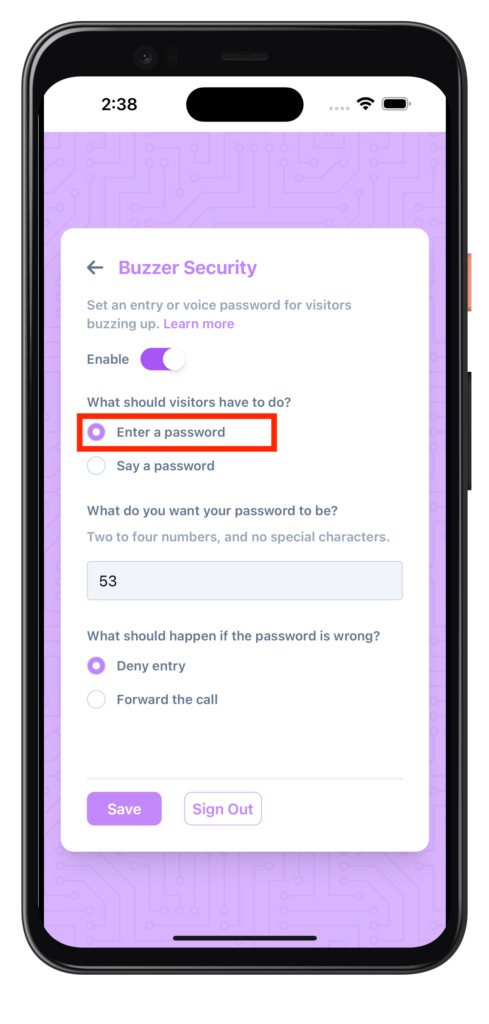
Setting an entry code means that when a visitor dials up to your suite, they will hear a voice prompting them to enter the password once the call connects. At this point, one of three things can happen:
If the visitor enters the correct entry code, then they are granted access to your building. You will receive a notification that someone was let into your building.
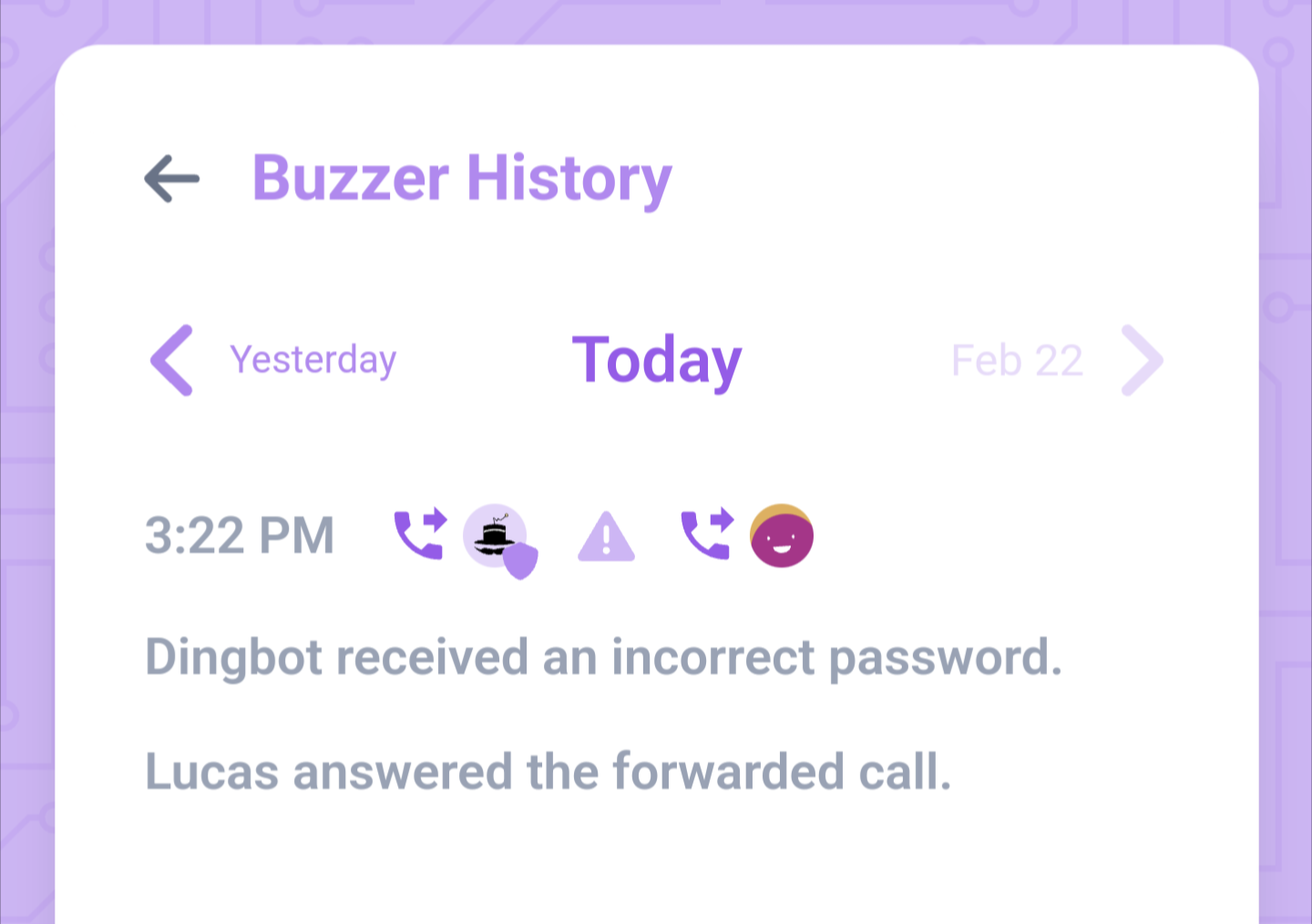
If the visitor enters the incorrect entry code, and you set the password to Deny Entry, then the call will be disconnected. You will receive a notification that someone attempted to enter your building with the incorrect password.
If the visitors enters the incorrect entry code, and you set the password to Forward The Call, then the call will be forwarded to your phone number instead. You can choose to allow or deny them entry from here as per usual.
To set an entry code password on your apartment suite, simply head on over to Buzzer Security from your suite settings, and follow the on-screen prompts.
Want to see more? Check out a video demo of an intercom password in action over on our Instagram page. The demo is for a voice password, but the entry code works more or less the same way.
Adding security to your intercom has never been easier with Dingbot. See what else Dingbot can do on our blog, or sign up for a 30 day free trial.
That's all for now, till next time! 💜
Lucas @ Dingbot